Today i feel a bit sad maybe everything out
of my expectation, client not respect and the
out come not my expectation !!
It is a ‘Bad day’ but is good for experiment !!

Today i feel a bit sad maybe everything out
of my expectation, client not respect and the
out come not my expectation !!
It is a ‘Bad day’ but is good for experiment !!
Verso/Verse:E         Asus2

Full moon sways...

C#m            Bsus2         Asus2

Gently in the night of one fine day.E     Asus2

On my way...

C#m            Bsus2         Asus2

Looking for a moment with my dear.

E         Asus2

Full moon waves.

C#m            Bsus2         Asus2

Slowly on the surface of the lake.

E         Asus2

You were there...

C#m            Bsus2         Asus2

Smilling in my arms for all those years.

Coro/Chorus:

C#m

What a fool...

A                      E

I don't know 'bout tomorrow...

F#m                A

What it's like to be.

Ah~

C#m

I was sure,

A                      E

Couldn't let myself to go.

F#m                A

Even though I feel...

The end.

Verso/Verse:

E         Asus2

Old love affair...

C#m            Bsus2         Asus2

Floating like a bird resting her wings.

E         Asus2

You were there...

C#m            Bsus2         Asus2

Smiling in my arms for all those years.

Coro/Chorus:

C#m

What a fool...

A                       E

I don't know 'bout tomorrow...

F#m                A

What it's like to be.

Ah~

C#m

I was sure,

A                     E

couldn't let myself to go.

F#m                A

Even though I feel...

The end.

Verso/Verse:

E         Asus2

Full moon sways...

C#m            Bsus2         Asus2

Gently in the night of one fine day.

E       Asus2

You are there.

C#m            Bsus2         Asus2

Smiling in my arms for all thoses years...
歌手/乐队:Jay Chow |C |Em Am |F |C 我知道伤心不能改变什么 那么让我诚实一点 |F |Em Am |F Dm7 |G 诚实难免有不能控制的宣泄 只有关上了门不必理谁 #|C |Em Am |F |C 一个人坐在空的包厢里面 手机让它休息一夜 |F |Em Am |F Dm7 |G 那上千个切掉回忆的画面 眼泪不能流过十二点 Chorus: |C |G/B |Am |Em 生日快乐 我对自己说 蜡烛点了 寂寞亮了 |F |C |Dm7 |G 生日快乐 泪也融了 我要谢谢你给的你拿走的一切 |C |G/B |Am |Em |F |C 还爱你的一点恨 还要时间 才能平衡 热恋伤痕 画面重生 |Dm7 G↓ |C 祝我生 日 快 乐 Repeat:#,Chorus x2
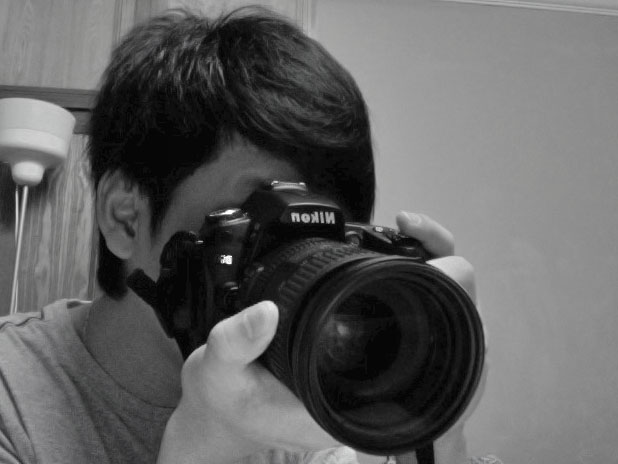
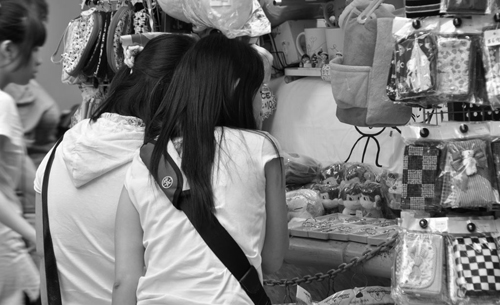
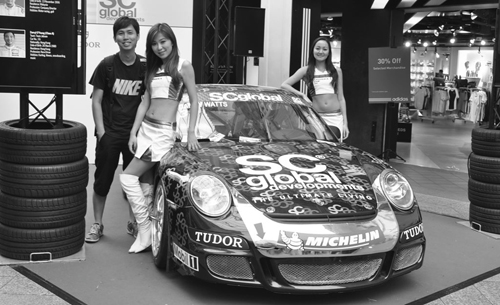
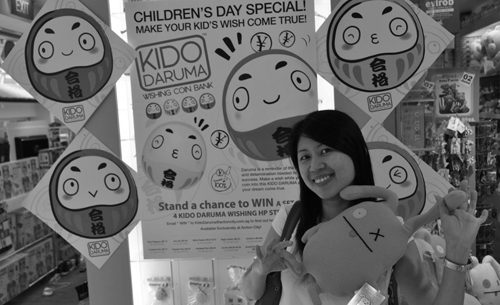
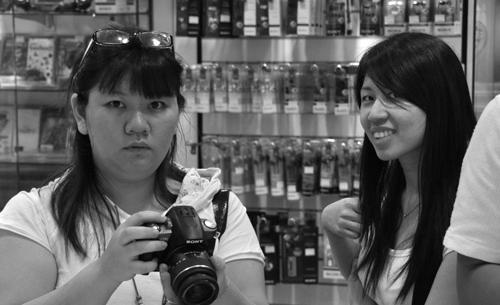
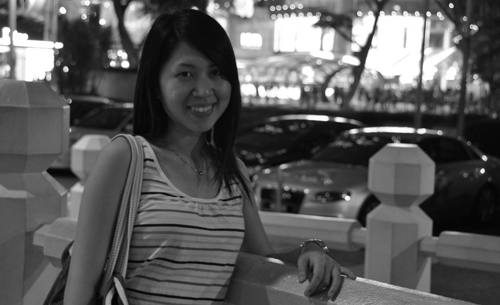
Finally i can play DSLR and shooting photo , Hari Raya i have a small trip go to Singapore .. hope can shoot some nice photo , .. .. hihi !!
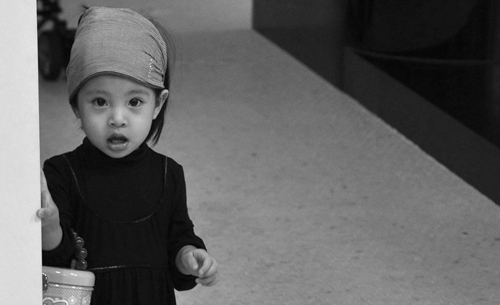
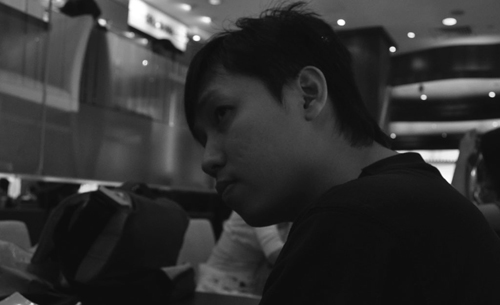
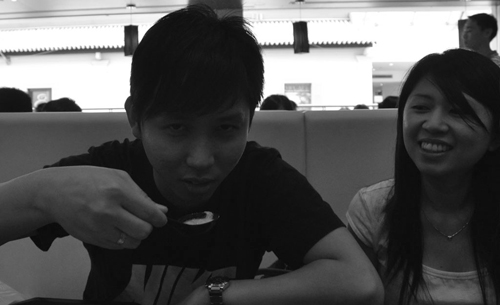


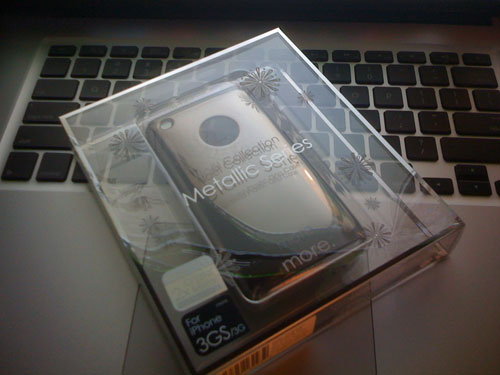
Noel collection Metallic Series
Free 2x Crytal Mirror (screen protector) ;
Finally i received my new iPhone casing .. ..
>> link : more-thing.com